
Step 3: Configuration
Mod Organizer 2
Wabbajack furnishes you with a specialized version of Mod Organizer 2 exclusively for Living Skyrim, ensuring no interference with any other modlists.
- Navigate to your Living Skyrim directory and run
ModOrganizer.exe.
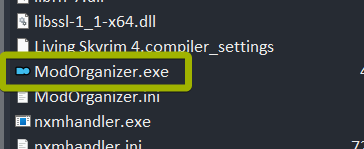
The Mod Organizer 2 EXE file.
When you open Living Skyrim's MO2, you'll be greeted with a custom dark Mod Organizer 2 theme. If you have the default light theme for Mod Organizer 2, something has gone wrong with the installation and you'll need to return to Step 2: Installation and re-run the installation.
If you receive a prompt to associate Mod Organizer with .nxm links, press "Yes". If you do not receive this prompt, you've already done this and don't need to worry about it.
Also, if you are prompted to update the game's registry path, click "Yes". If you do not receive this prompt, you've already done this and don't need to worry about it.
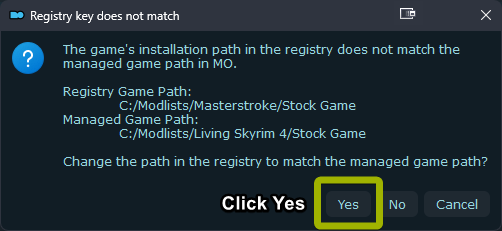
Registry popup. (Placeholder image)
Controller Support
Controllers are not supported during the Living Skyrim 5 closed alpha. Mouse and Keyboard only.
Ultrawide Support
Ultrawide monitors are not supported during the Living Skyrim 5 closed alpha. 16:9 aspect ratio monitors only.
Survival Mods
In the closed alpha of Living Skyrim 5, no survival mod is included. This is not planned to change.
Reshade
Living Skyrim 5 uses a customized Reshade preset that cannot be changed. The Reshade preset included with the modlist is the intended look for the game. If necessary (for performance reasons, for example), you can turn off Reshade via its menu (Home key to open the menu by default.).