
Step 1: Preparations
Before you get started installing or playing Living Skyrim, it’s important to note a few things:
Info boxes (ℹ️) give extra details or images about guide steps.
Important notices (⚠️) highlight steps you should be very careful with.
Warnings (🛑) tell you critical steps that you must not miss. If you ignore these, you might face big problems.
- For a quick look at the big changes this modlist offers, check the Important Mods page.
- Living Skyrim doesn’t autosave. Use quicksaves often (usually F5 key).
- Best to save before going through a loading screen. If you save after, wait at least 30 seconds. Don’t save during fights if you can avoid it.
- Characters in Living Skyrim are never nude - at minimum they will be wearing underwear.
- The game runs in exclusive fullscreen for better performance.
Helpful Links
Videos
Hard Requirements
Ensure you have the following requirements:
| FG's Specs | |
|---|---|
| CPU | Ryzen 9 3900X |
| GPU | RTX 3080 10GB |
| RAM | 32GB |
| Storage | 2TB NVMe |
Above you'll find the specifications for the computer that the modlist was built on, which is ForgottenGlory's personal desktop computer. The list runs acceptably to ForgottenGlory on that hardware. Why don't we have recommended hardware listed? Mostly, it's for our own collective sanity. If we listed recommended hardware and estimated performance and then someone comes in and gets a different experience, then to them, what we've advertised isn't what they experienced. The simple truth of the matter is that everyone's performance and expectations for performance are different, and we simply can't account for all possibilities. To one person, 50FPS might be perfectly acceptable while to another it's completely unacceptable.
Ultimately, you'll have to try the list and see if the performance meets your expectations. If it doesn't, you'll need to make your own tweaks and experiment to figure out what works best on your specific hardware and software configuration.
Software Requirements
- Pagefile Configuration
- Open sysdm.cpl ,3 (Windows + R).
- In Performance, click ‘Settings’ > ‘Advanced’ tab > ‘Virtual memory’ > ‘Change…’
- Don’t let Windows manage pagefile size.
- Set a custom size on your fastest drive: minimum 20GB.
- Restart PC after.
- Microsoft Visual C++: Needed for many games and programs.
- Get the latest version: Microsoft Visual C++ x64
- Microsoft .Net Runtime: Essential for some apps and games.
- Download and install both Desktop and Console:.Net Runtime
Nexus Premium (Optional)
Not a must, but speeds up mod download and installation.
Skyrim Setup
First you need to update and run Skyrim. This ensures that the files necessary for Living Skyrim exist for the installation.
- Select The Elder Scrolls V: Skyrim Special Edition within your Steam Library, and update it if necessary.
- Click “Play”.
- The Skyrim launcher will offer to auto-detect your settings. When this happens, click “OK” and then click “OK” again. These settings don’t matter, since Living Skyrim uses its own settings.
- Click “Exit” to exit the Skyrim launcher.
Make sure Skyrim: Special Edition is the latest version (1.6.1170) in Steam. If you’ve manually downgraded the game or haven’t updated yet, use Steam’s “Verify Game Files” feature to update the game.
Make sure Skyrim’s language is set to English. (Right-click > Properties > Language)
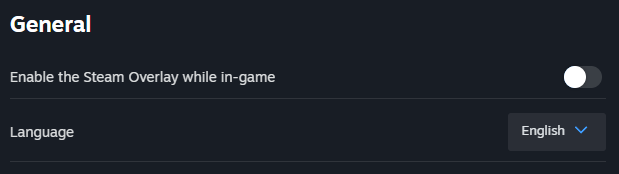
The Steam menu for its overlay and the Language menu.
Wabbajack Preparations
We’ll now setup the folders needed for the installation to proceed smoothly.
- Create two empty folders: “Wabbajack” and “Living Skyrim.”
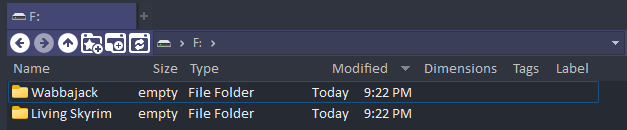
The two folders in the root of example drive F:
There are some restrictions on install location.
You CANNOT place these folders in:
- Program Files or Program Files (x86), or their subfolders;
- the Users folder, or its subfolders;
- the Steam folder, or its subfolders;
- the Skyrim folder, or its subfolders;
- the Desktop folder, or its subfolders;
- the Documents folder, or its subfolders;
- any folders with non-English characters;
- any cloud storage folders (e.g. Dropbox, OneDrive, etc.);
- inside one another (e.g.
[install drive]\Wabbajack\Living Skyrim.)
- Download the latest Wabbajack from their website: Wabbajack.
- Put the Wabbajack.exe in the “Wabbajack” folder.

Wabbajack.exe in its folder.
Logging into Nexus
Next you will need to log into Nexus in order to be able to download and install the list.
Start by opening Wabbajack by double clicking the "Wabbajack.exe".
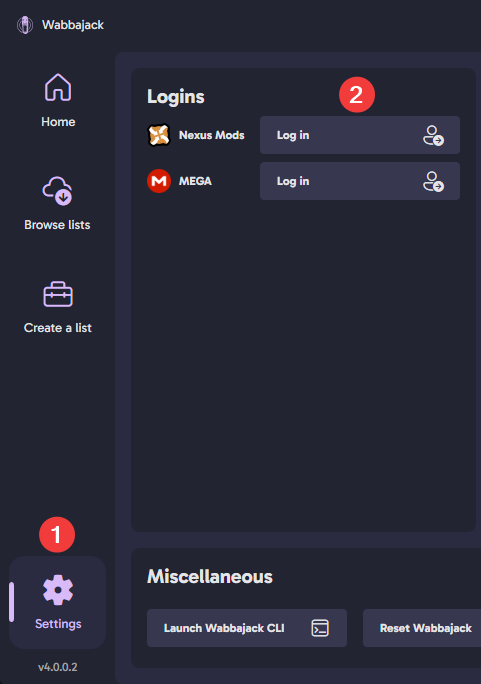
The settings icon and the nexus log in button.
- Once you're on the main page, click the cogwheel in the bottom left which will take you to the settings page.
- Once there, click the button next to "Nexus Mods" where it says "Log in". It will take you to the Nexus log in screen.
Once you're done and logged in you can exit this page and go back to the main menu by clicking the "Home" icon in the top left.