
Step 2: Installation
WarningLiving Skyrim 4 is no longer under active development and is being superseded by Living Skyrim 5. Support for LS4 will be minimal, and we are no longer accepting bug reports or suggestions for Living Skyrim 4.
It's now time to begin the installation of the list. Follow these steps:
- At the bottom of the page, click Get Started.

The Browse Modlists button.
- You can either choose Skyrim Special Edition and scroll until you find Living Skyrim or you can type in "Living Skyrim" in the search bar at the top.
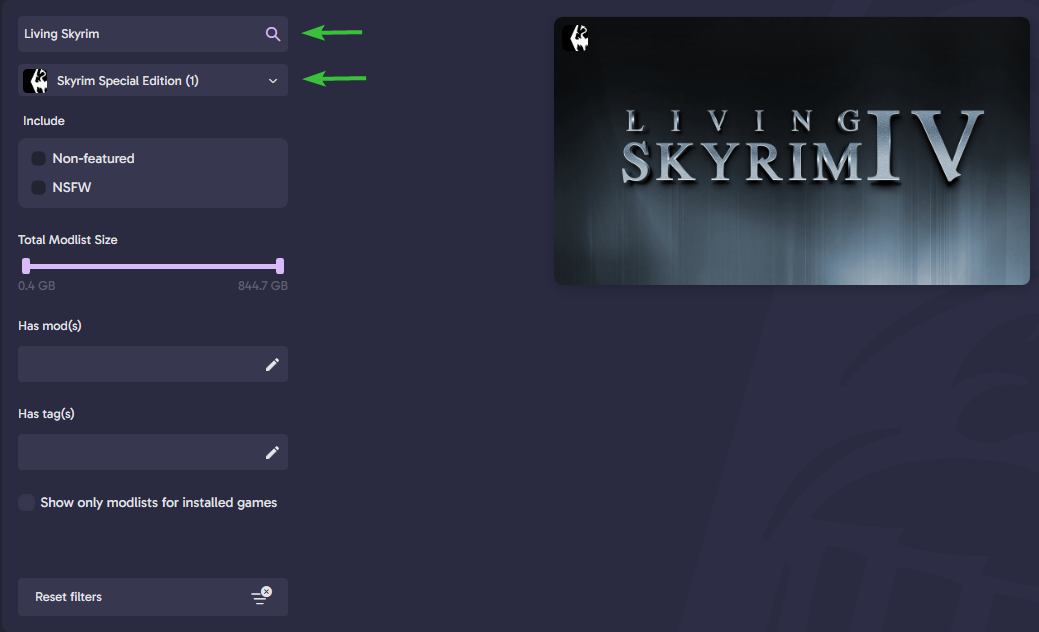
The Wabbajack gallery.
- Click the Living Skyrim card and you will be directed to the downloads page.
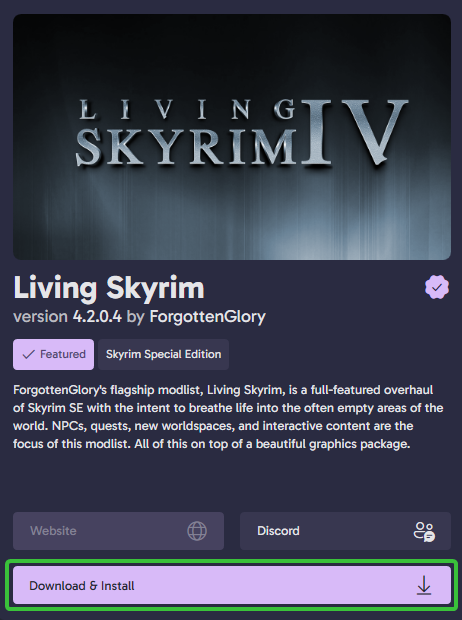
The begin Download button.
- To the left of the Living Skyrim picture you will see two boxes. The installation and the downloads locations.
- If you would like to view the read me, you can click the readme button.
Caution
If you are updating or resuming a previous install of the list, please double check the installation location and downloads location that are selected. They need to match your existing Installation and Downloads Location.
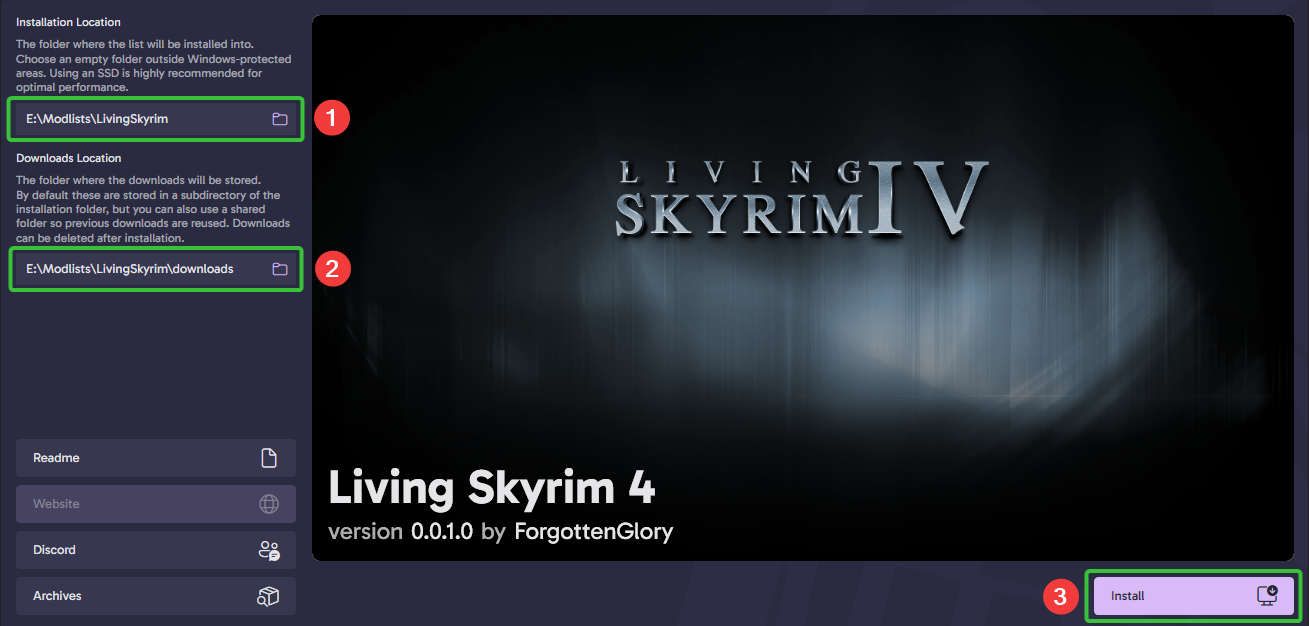
The Install and Download paths configured correctly with the example drive E:\
- This box shows where the list, including Mod Organizer 2 will be saved. Either keep the location that Wabbajack suggested or choose a folder where you want the list to be installed. Anything that does not belong to the modlist install will be deleted, make sure you select an empty folder for a new install or your existing install location when resuming the install or updating the list.
- This is where you want the mods to be downloaded. Either keep the location that Wabbajack suggested or if needed due to storage limits, change it by clicking the box and choose a different location (does not need to be on the same drive as the installation folder).
- Once this is done, click the Install button.
Caution
Wabbajack automatically suggests a folder for both. Change the installation and download location if they don't match the folders that you created in step 1: preparation.
With Nexus Premium
- Wabbajack will want you to log in to Nexus and approve your API key for automatic mod downloads. If it skips this, it’s all good – you’ve done it before.
Without Nexus Premium
- Wabbajack will guide you through downloading the modlist. This can take a very long time (around 24 hours). There’s a chance the list might update while you’re installing, requiring a restart. If you can, use Nexus Premium. If not, settle in with a good audiobook or TV series.
- Now, Wabbajack will download and set up the mods. This might take up to 3-4 hours.
Caution
While waiting, consider checking out the Important Mods.
- If there’s an issue then a red “Installation failed” message will show, look at the FAQ section or join the Living Skyrim Discord server server for help.
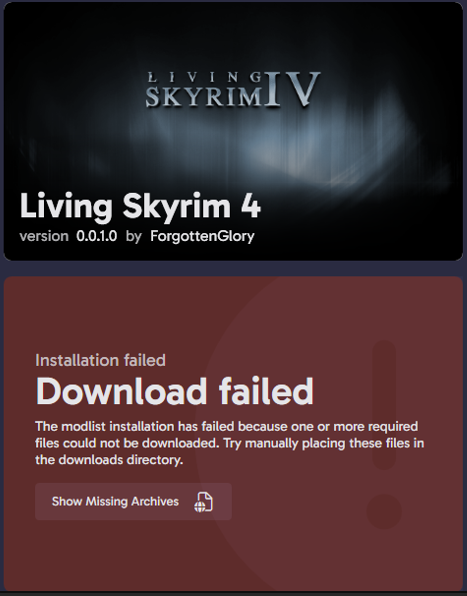
Installation failed.
- When done you'll see at the top it will say "Finished installing Living Skyrim"
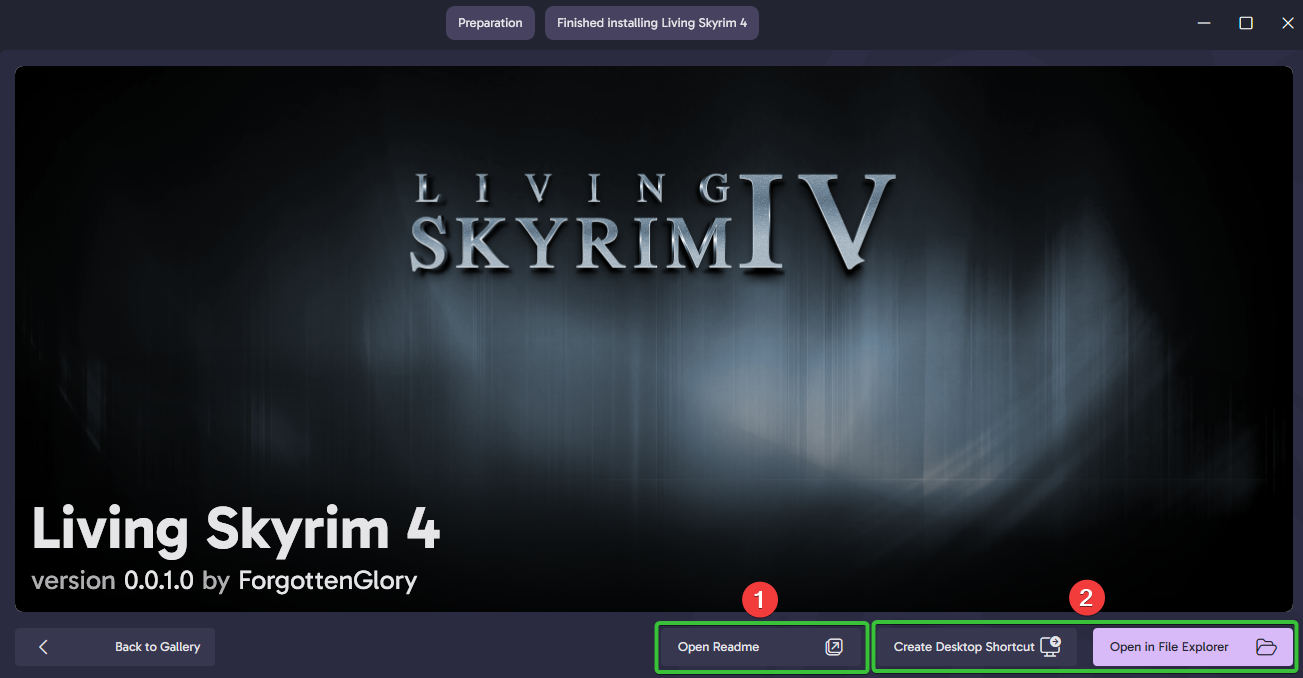
Installation complete!
- You can open the Readme that will then tell you how to proceed after the installation.
- Here you click "Create Desktop Shortcut" which you then can use to open the ModOrganiser2 in order to play the game. Or you can choose to open the File Explorer and you can find ModOrganiser2 there instead.