
Step 3: Configuration
Mod Organizer 2
Wabbajack furnishes you with a specialized version of Mod Organizer 2 exclusively for Zenithar's Forge, ensuring no interference with any other modlists.
- Navigate to your Zenithar's Forge directory and run
ModOrganizer.exe.
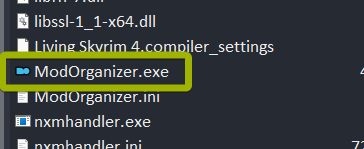
The Mod Organizer 2 EXE file.
When you open Zenithar's Forge's MO2, you'll be greeted with a custom dark Mod Organizer 2 theme. If you have the default light theme, something has gone wrong with the installation and you'll need to return to Step 2: Installation and re-run the installation.
If you receive a prompt to associate Mod Organizer with .nxm links, press “Yes”. If you do not receive this prompt, you've already done this and don't need to worry about it.
Also, if you are prompted to update the game's registry path, click “Yes”. If you do not receive this prompt, you've already done this and don't need to worry about it.
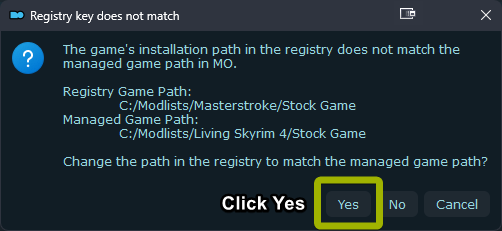
Registry popup.
Configuration
A few optional mods are available so you can tailor the experience:
- Nordic UI 32:9 / 21:9: Activate only if your monitor’s resolution is 2560x1080 or higher and matches either the 21:9 or 32:9 aspect ratio.
- QuickLoot: Enhances the looting experience, resembling Fallout 4. It may conflict with certain scripted mods. If you activate it, also activate the matching retexture.
ENB
Zenithar's Forge ships with six selectable ENB presets, with Rudy Zangdar’s Edit being the default.
To change ENB presets:
- Launch ENB Organizer within Mod Organizer 2. Disregard any update-related notifications; they’re normal.
- Select the three-line icon at the top left.
- Choose “Presets.”
- Disable any active preset by clicking its toggle.
- Activate your preferred preset with its toggle.
- Wait a moment (about 10 seconds), and you’re set.
Always keep just one ENB preset active to prevent potential complications.
If ENB is too heavy for your system, it can be toggled on and off in-game using Shift+F12.
While the bundled presets are comprehensive, no support is provided for adding additional ENB presets.