
Mature content ahead
Masterstroke is an adult-oriented modlist intended for players aged 18 or older. By entering you confirm that you meet your local age of majority and consent to viewing mature content.
Customizing
Masterstroke is intended to be customized to suit your playstyle. You can make things as hard or easy as you’d like, or turn off several features that you’re not interested in using. Below you’ll find information about things that can be safely customized. Depending on what you want to change, the method can be different.
✅Optional mods in MO2
The mods that can be found in the "List Customization" or "Ultrawide support" category can be enabled or disabled any time you want. If the categories don't appear then click on the "Priority" column at the top to sort everything.
📋INI / Config files
The INI and other config files listed below can be edited. Use the searchbar at the bottom of the Mod Organizer to find the relevant mod/file.
Pay attention when making these changes. Don't make mistakes like removing a comma by accident. If you broke a file, you can run wabbajack again to restore all files.
⚙️Mod Configuration Menu (MCM)
In the game there are many settings that can be changed after you have run the initial setup process for the MCMs.
To keep things working as smoothly as possible, it is recommended to NOT change the following:
- Sexlab configuration
- HUD elements other than the SLWidgets
🛠️Other customizations
Visual Changes
✅Skin Textures
The default skin texture in Masterstroke is Fair Skin, if that isn’t to your liking we have prepared several options for you to choose from.
Only enable one skin texture under List Customization, and always leave Fair skin enabled. (The game will only use the skin texture that is enabled and ordered last.)
✅Skimpy Outfits
Masterstroke contains additional bodyslides that allow you to select whether male and female outfits are skimpy or not. You can enable either “Masterstroke Bodyslides (Skimpy Male)” or “Masterstroke Bodyslides (Skimpy Female)”, or both if you want everyone to be wearing skimpy outfits.
✅Physics
By default, Masterstroke has a few options for the physics applied to your character. In-game, you can switch between CBPC and SMP physics by pressing Numpad +. If you find that neither of these is to your liking, you can safely disable 3BA 3BBB CBPC Realistic Firm Breasts Butt and Thighs (3BA RFBBT). This will make the CBPC option a bit bouncier.
✅Living Armor
In the creature profile you can encounter a living armor. By default it looks like a transparent jelly. You can enable the following option to make it opaque and green:
"Alternate version of the Living Armor - Creature Profile only (C5Kev's The Tentacled Terrors Of Tamriel 3BA)"
🛠️Community Shaders
By default, Masterstroke comes bundled with several CS presets that you can choose between.
To switch between presets, follow these instructions:
- On the right side of Mod Organizer, click Masterstroke [SKSE] to show the dropdown menu.
- Click ENB organizer, and then Run to launch it.
If you receive a message about changing the Registry game path, click YES.
And if you receive a message about ENB Organizer being unable to update, this is normal and can be safely ignored. - Click the three lines in the top left corner of ENB Organizer.
- Click “Presets” in the menu that appears.
- If a preset is already enabled and you want to change: disable any enabled preset.
- Click on the toggle under any other preset to enable it.
- Wait 10 seconds, then you’re done!
You should only ever have one CS preset enabled. Having multiple enabled is a recipe for a Bad Time™.
Support is not provided for adding additional CS (or ENB) options to the modlist. If you want to add more options, you need to know how to use ENB Organizer and be familiar with the Stock Game feature that Masterstroke uses.
✅Show/hide Headgear
By default your headgear will only be visible in combat or with the assigned hotkey.
To change this behavior, either enable "Toggle headgear - always hidden" or "Toggle headgear - always visible"
📋Character overlays
If you want to customize your character with a lot of overlays, you can increase the amount of layers available with these steps:
- In the left pane of MO2, double click Masterstroke - Mod Configurations
- Select the INI file: SKSE\Plugins\skee64_custom.ini
- Increase the numbers after iNumOverlays= to the desired amount.
Keep at least 3 extra overlays available for other mods to function that add blood, dirt and cum overlays.
📋Blacklist bodypresets
OBody will randomly give one of many body presets to each NPC you meet.
If you don't like a preset, you can prevent it from applying to NPCs with these steps:
- In the the left pane of MO2, double click Masterstroke - Mod Configurations
- Select the Text File: SKSE\Plugins\OBody_presetDistributionConfig.json
- Add any preset names in the list at the bottom: "blacklistedPresetsFromRandomDistribution"
Make sure that there's a comma at the end of each preset, except the last one. - If you already met a lot of NPCs before, you can open the MCM for OBody NG and click "Reset all distributed presets".
⚙️SLWidgets
In this MCM you can individually disable the widgets that appear on the left of your screen for info related to: Arousal, exposure, cum, milk and lactacid.
⚙️SmoothCam Preset
You can safely change the SmoothCam preset in this mod’s MCM if you do not like the default preset. You can and should experiment to see which camera variant you like best.
Difficulty & Realism
If you’d like the make the list more (or less) difficult, you’ll need to tweak a few things. You can also experiment with these settings if you’d like to tweak your experience.
🛠️Survival Mode
By default you'll need to sleep, eat and keep yourself warm.
This mode can be disabled by opening the main SETTINGS menu.
⚙️Public Whore
The settings in this menu can make it easier or more difficult to finish being the Public Whore.
⚙️Sets of Skills
If you opt to not pick a class using Sets of Skills, you will not receive class bonuses which can make the game harder.
⚙️Devious Devices
In this MCM you can change the difficulty of escaping toys as well as turn off various features related to Devious Devices, if that’s what you want.
⚙️Devious Curses
In this MCM you can change how often traps that place Devious Devices on your character occur, as well as control how frequently keys appear. Changing these settings can make the Devious Devices experience much harder or much easier.
✅Unforgiving Devices - Dart Trap
Pressure plates that activate a dart trap will shoot black goo that traps you in abadon devices.
To revert the trap to poison darts, enable "Unforgiving Devices - Remove UD Dart Trap"
⚙️Trade & Barter
- Barter Rates
- Barter Preset: Whatever you want
Making this change will make items sell for more or less and increase or decrease the cost of purchasing items.
Content
🛠️Creature Profile
If you want to enable the creature content, you should use the profile drop down menu to switch to the Creature Profile.
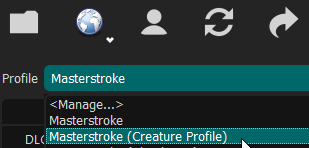
The profile dropdown menu.
Do not manually enable the mods under the Creature Profile heading in MO2, this will certainly break everything. Only use the profile drop down menu to switch.
Your saves are specific to the profile, you can't load a save from a different profile.
⚙️Customizing the Creature Profile MCMs
Almost all of the mods added in the Creature Profile have MCMs that allow you to tweak or disable things. Check the MCM for your options. Note that some of the mods in the creature profile have very touchy MCMs that require some patience, such as Estrus Chaurus. Be careful and go slow when making changes to these mods.
⚙️Keep It Breezy
Keep It Breezy allows you to swap normal armor for its Bikini variant. It can be modified or disabled in this mod’s MCM.
⚙️Scrappies Matchmaker
The locations of where matchmaking occurs can be modified and disabled in this MCM.
Hotkeys
Before changing hotkeys, you should refer to the keymap that you can view by pressing F11 in game.
⚙️True Directional Movement
The default hotkey to lock on enemies is mouse 5 button. You can change the hotkey in the "Target Lock" menu of this MCM.
📋TK Dodge NG
The default hotkey to dodge in combat stance is Alt.
To change the hotkey do the following steps:
- Lookup the corresponding keycode: https://wiki.nexusmods.com/index.php/DirectX_Scancodes_And_How_To_Use_Them
- In the left pane of MO2, double click TK Dodge NG
- Select the INI file: SKSE\Plugins\TK Dodge RE.ini
- Change DodgeHotkey = 56 to the keycode you want to use.
✅Acheron Extension Library - Helldivers QTE Edit
By default the struggle minigame use the WASD keys. Enabling this optional mod changes it to the arrow keys.