
Mature content ahead
Masterstroke is an adult-oriented modlist intended for players aged 18 or older. By entering you confirm that you meet your local age of majority and consent to viewing mature content.
Step 1: Preparations
Before You Begin
Before you get started installing or playing Masterstroke, it’s important to note a few things:
Info blocks like this provide more information regarding a step of the guides.
Sections labeled important like this one will tell you when you need to pay extra attention to something.
Warning blocks like this one will warn you when you absolutely must not forget to do something. Failure to heed warning blocks is cause for disaster.
- If you instead only wish for a brief overview of the major changes this modlist makes, you should refer to the Important Mods You Need to Know About section of this document.
- Autosaves for Masterstroke are disabled. You should make your quicksave button your best friend (usually, the F5 key).
- Continuing the last point, it is always better to save before entering a loading screen instead of after. After a loading screen it is very likely that scripts will be running for at least 30 seconds, so if you must save after a loading screen, at least wait that long before doing so. When practical, try to avoid saving during combat.
- In Masterstroke, NPCs and player characters are nude while wearing no armor/clothing.
- By default, Masterstroke has the game running in exclusive fullscreen mode to assist with game performance.
Important Links
- Important mods (For the full modlists: regular profile / creature profile)
- Masterstroke Discord
- Masterstroke Patreon
- Wabbajack Gallery
It's possible that the Masterstroke list is temporarily unavailable to install. You can check the Wabbajack Gallery for lists that are currently available. Or join the discord for news and a notification when the list is updated again.
Hard Requirements
The following are absolutely required to begin installation of Masterstroke. These must all be installed and up to date before you begin.
- Skyrim Special Edition (Steam, v1.6.1170)
- Microsoft Visual C++ x64
- .Net Runtime
- 425GB of available space on a hard drive/SSD/NVMe. (135GB Download Size + 317GB Installation Size)
More detailed instructions on installing and configuring these are in the following pages.
System Requirements
| FG's Specs | |
|---|---|
| CPU | Ryzen 9 3900X |
| GPU | RTX 3080 10GB |
| RAM | 32GB |
| Storage | 2TB NVMe |
Above you'll find the specifications for the computer that the modlist was built on, which is ForgottenGlory's personal desktop computer. The list runs acceptably to ForgottenGlory on that hardware. Why don't we have recommended hardware listed? Mostly, it's for our own collective sanity. If we listed recommended hardware and estimated performance and then someone comes in and gets a different experience, then to them, what we've advertised isn't what they experienced. The simple truth of the matter is that everyone's performance and expectations for performance are different, and we simply can't account for all possibilities. To one person, 50FPS might be perfectly acceptable while to another it's completely unacceptable.
Ultimately, you'll have to try the list and see if the performance meets your expectations. If it doesn't, you'll need to make your own tweaks and experiment to figure out what works best on your specific hardware and software configuration.
Additional Requirements
Nexus Premium
You are not required to have Nexus Premium to install Masterstroke, however, it is highly recommended. Nexus Premium will cut your install time to a fraction of what it would be by automating both the mod download and mod install processes of installing the list.
Storage Space
As of version 1.10.0, Masterstroke requires approximately 425GB of hard drive space (This number includes the download size). Installing to an SSD/NVMe is not required, but also highly recommended. The faster the drive you install the list onto, the faster the installation process will run and the faster the game will go through loading screens when playing.
More About System Specifications
Masterstroke requires a good to excellent computer to run. Textures range from 512x512 to 4K and everything in between. The following system is ForgottenGlory’s personal computer and is able to run the list at a constant 60FPS including ENB at 1440p monitor resolution.
- CPU: AMD Ryzen 9 3900X @ 4.2GHz
- RAM: G.Skill TridentZ Neo 32GB DDR4 3600MHz CL16
- GPU: nVidia RTX 2080 Super 8GB (8192MB actual)
- Monitor: Dell S2716DGR 2560x1440 @ 144hz
- Storage: Sabrent Rocket 2TB M.2 NVMe 2280; Samsung EVO 860 250GB; SeaGate Barracuda 2TB 7200RPM
In general, it is recommended that you have a processor with a clock speed of at least 3GHz and a graphics card with at least 6GB of VRAM. 4GB graphics cards may be able to run the list if you do not use ENB, but it is not guaranteed.
As for RAM, 16GB is the recommended specification for running the list. 32GB is the ideal amount, and anything more than that is honestly overkill for this list.
Pagefile Configuration
Bigger Skyrim modlists need a lot of memory, and when there is not enough available it may fail allocating more. To fix this, you’ll want to have a bigger pagefile.
A pagefile is a file on your disk Windows will use when there is not enough RAM available.
Never disable the pagefile - this may lead to various issues on your system, including Skyrim crashes.
To set the pagefile up properly for this modlist, follow these steps:
- Press Windows + R on your keyboard and enter
sysdm.cpl ,3 - Under the Performance section, press ‘Settings’
- Go to the Advanced tab at the top, and at the Virtual memory section press ‘Change…’
- Disable ‘Automatically manage paging file size for all drives’
- Set a custom size for your fastest drive and increase the initial and maximum size to be at least 20GB (20000MB).
- Restart your computer to make sure the changes have taken effect.
If you have more than one drive, try enabling it for at least one more drive as a backup (make sure it has a decent bit of free space, like 15GB). Set the size to ‘System managed size’.
Microsoft Visual C++
The Visual C++ Redistributable is a DLL (Dynamic Link Library) file required by programs or games built using Microsoft’s Visual Studio software development environment. As Skyrim Special Edition is a 64-bit program, elements of it - along with other aspects of the modlist - require the 64-bit version of Visual C++ in order to run.
Click the link to download the latest Visual C++ x64 Redistributable, then double-click the downloaded file and follow the instructions:
Microsoft .Net Runtime
This is another runtime library required by some programs. Not having these installed can result in issues running Masterstroke.
click the link to open a page on the Microsoft Website to download the .NET runtime files. You may need both the Desktop and Console versions, so please install both:
Steam & SSE Setup
Before installing Masterstroke, you should make sure Skyrim: Special Edition is up to date in Steam. If you have run a downgrade patcher or not updated yet, verifying the game files using Steam will fix any issues you may encounter during installation.
Before proceeding with installation, it’s important that your Steam and Skyrim Special Edition install are configured correctly.
First, make sure that your Steam library, and therefore the Skyrim Special Edition install folder, is not located within your Program Files, Program Files (x86), Desktop, Documents or Download folders. Having the Steam library or your copy of Skyrim Special Edition in either of these folders is known to cause issues. Instructions on how to move your Steam library can be found elsewhere on the internet.
Next, you’ll need a clean copy of Skyrim Special Edition. To get your copy to this state, follow these steps:
- In Steam, uninstall Skyrim: Special Edition:
Right-click > Manage > Uninstall. - If there are any files leftover in the Skyrim Special Edition game folder, delete them:
Right-click > Manage > Browse Local Files. - Install Skyrim: Special Edition.
- Disable the Steam Overlay.:
Right-click > Properties… > General > Enable the Steam Overlay while in-game checkbox. - Configure Skyrim’s language to English:
Right-click > Properties… > Language > Select ‘English’ in the dropdown list. - In Steam, press the Play button to open the Skyrim Launcher. After it successfully selected a graphics preset for your hardware, immediately close the Launcher.
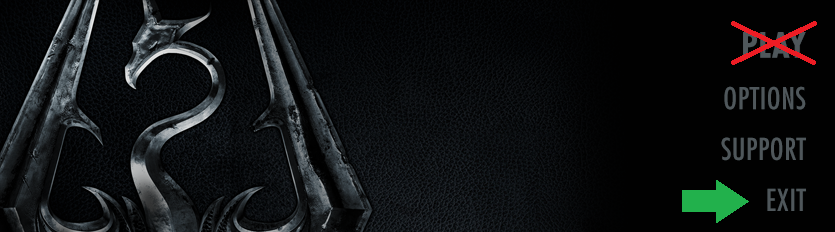
Do NOT press PLAY in the skyrim launcher to start the game.
If you did, then verify the game files in Steam:
Right-click > Properties… > Installed Files > Verify integrity of game files
Wabbajack Preparations
We’ll now setup the folders needed for the installation to proceed smoothly.
- Create a folder for Wabbajack:
- C:\Wabbajack
- Create a folder for Masterstroke:
- C:\Modlists\Masterstroke
- Create a download folder:
- C:\Modslists\Masterstroke\downloads
InfoIf you choose a different location, then ensure the following:
- Do NOT place the Masterstroke folder within the Wabbajack folder.
- Do NOT place the folders in drive A: or B:
- Do NOT place the folders inside the following folders:
Skyrim Special Edition, Program Files, Program Files (x86), Documents, Downloads, Desktop. ℹ️ The download folder may also be located on a different drive or a shared folder for multiple modlists.
For example: D:\Modlists\downloads
- Download the latest version of Wabbajack from the Wabbajack website:
https://www.wabbajack.org/ - Place the Wabbajack.exe file you just downloaded into the wabbajack folder you created earlier.
Failure to set up these folders properly will result in the install failing. For example, C:\Wabbajack\Masterstroke is incorrect.