
Mature content ahead
Masterstroke is an adult-oriented modlist intended for players aged 18 or older. By entering you confirm that you meet your local age of majority and consent to viewing mature content.
Step 3: Configuration
Mod Organizer 2
Among other things, Wabbajack has installed a copy of Mod Organizer 2 for you. This copy of Mod Organizer 2 is specific to Masterstroke and will not affect any other modlists you have installed.
- Inside your Masterstroke folder, locate and launch ModOrganizer.exe. If this is not inside the folder, your installation has failed and you need to consult the Common Issues section of this document.
- A "Register?" dialogue may appear and ask if you want Mod Organizer to associate with nxm links. Click Yes. If this dialogue does not appear, it is not an issue and means you’ve likely already done this.
- Mod Organizer 2 will have a dark theme already selected for you. If it does not, something has gone wrong and you will need to start over at the Installing the List section of this document.
Ultrawide support
If you're using a 21:9 or 32:9 monitor. Enable the Masterstroke Ultrawide mod in the left pane of MO2 under the Ultrawide support category.

Ultrawide options
Optional changes:
How to Enable the Creature Profile
Masterstroke has an optional profile in Mod Organizer 2 that allows you to activate various mods with a focus on creature content. You should use the profile drop down menu to switch to the Creature Profile.
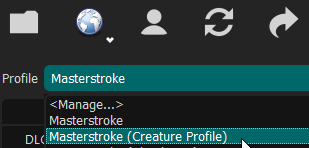
The profile dropdown menu.
Do not manually enable the mods under the Creature Profile heading in MO2, this will certainly break everything. Only use the profile drop down menu to switch.
Your saves are specific to the profile, you can't load a save from a different profile.
List customization
Further customization options are explained on the page customizing. These changes can also be made later.